

Creating Your Own Dedicated CS2 Server: A Step-by-Step Guide
Setting up a dedicated server for CS2 (Counter Strike 2) enhances your gaming experience by providing control over game sessions. Unlike public community servers, a private CS2 server allows you to decide who joins, customize maps, customize skins
and tweak game settings. Follow this guide to establish your dedicated CS2 server on Windows via Steam or SteamCMD using Valve’s CS2 …
 admin
adminBeginning SQL Server 2005 Programming
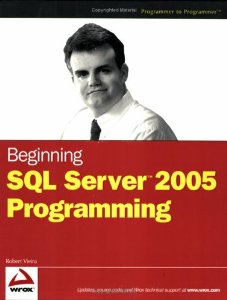
After a while (busy days…) I’ve got a new book: Beginning SQL Server 2005 Programming by Robert Vieira.
I’m not considering myslef a SQL Server expert but to be honest I was afraid of this beginning word in the title. Yet I’ve been using SQL Server for a couple of years (apart from Java, C#, etc. – so not full …
Security in accessing reports on Report Server
Once you deploy reports on to Report Server they can be accessed from any Web application with an established URL. However, I see a scenario when one wants to prevent some users from accessing reports (e.g. a user should be able to view reports presenting only their personal information).
The way around this is to view reports on an aspx …
Reporting Services – “Your browser does not support scripts or has been configured not to allow scripts.”
When I run a report in the Report Manager using Internet Explorer (I had this issue on IE7) I got the following error:
Your browser does not support scripts or has been configured not to allow scripts.
Solution
Should you get it as well follow the instruction below:
- go to (from its menu) Tools/Internet Options
- go to Security tab
- select
Reporting Services – blank Report Manager screen
I believe Reporting Services are very powerful tool for report generation. Unfortunately the installation process can be time consuming as you might face some problems with the cofiguration… Of course such problems can be the reason of unsufficient knowledge in SQL Server configuration and management, etc.
Anyway, blank Report Manager screen can be one of the problems, which displays as …
Summary of Communities to Communities (C2C) 2009 Conference
C2C is a history now. I attended .NET stream and one session on SQL. The conference as a whole was very interesting, well organised, and basically developing. It was a Polish conference so most sessions were conducted in Polish but there were a couple of speakers from abroad too, and they spoke in English.
Basically I’m happy I had a …
Create a report with Reporting Services
If you want to create a report in 5 mins, you should follow this tutorial.
All requirement software can be found there. I installed the following:
The tutorial instructs you how to create the report (RDL file): how to define the data source, layout and how to preview the report.
Once you’re done, you can use Report Manager to deploy …
Data Transformation Services
Recently, I’ve learned how to write DTS (Data Transformation Services) in SQL Server 2000. In general, this tool allows transformation of data: copying between different databases (by different vendors) and files (Excel, CSV, etc.). The idea is simple; the usage often priceless.
The execution path of a package is defined using a kind of graph, where nodes are tasks to …
How to dynamically add new columns to report created with Reporting Services?
Imagine you have a report that displays some data and the number of columns cannot be defined at the design stage, i.e. the number of columns depends on user input. That seems to cause some problems when you want to render this report with Reporting Services…
Solution:
Note: The described solution applies to the case when RDLC files are used …
TSQL – How to select multiple rows into a single row
I spend too long on finding the solution for this problem…
Basically I had a table which looked like this
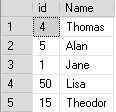
What I wanted was to select all as one row as a set of items separated with a comma, where an item was ‘id: name’. The items had to be sorted by the id. So the result was supposed to …
- 1
- 2