
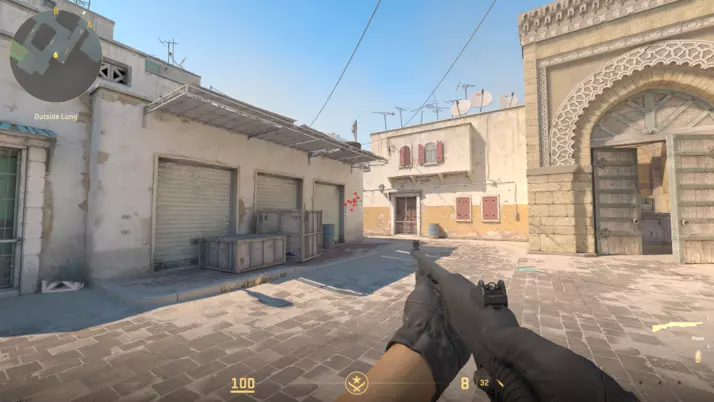
Setting up a dedicated server for CS2 (Counter Strike 2) enhances your gaming experience by providing control over game sessions. Unlike public community servers, a private CS2 server allows you to decide who joins, customize maps, customize skins and tweak game settings. Follow this guide to establish your dedicated CS2 server on Windows via Steam or SteamCMD using Valve's CS2 dedicated server app.

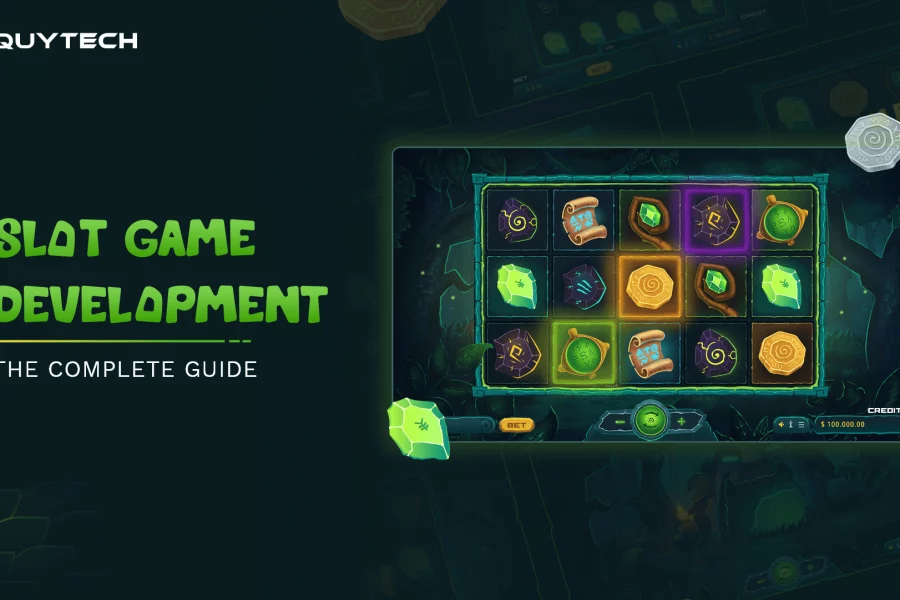
Slot games (look Fortune Rabbit or other PGsoft games) have long been a staple in the world of casinos, captivating players with their flashing lights, exciting sounds, and the promise of big wins. Behind the glitz and glamour lies a complex web of programming that drives the mechanics and outcomes of these beloved games. In this article, we delve into the fascinating world of programming in slot games, exploring the algorithms, random number ...
Slot games (look Fortune Rabbit or other PGsoft games) have long been a staple in the world of casinos, captivating players with ...
NVelocity is a view engine for MonoRail. It’s quite handy and it’s not difficult to deliver such views. One of the flows I can name can be the security issues. By default there’s ...
If you use Friend of a Friend (FOAF) files to describe your profile and want to provide it to the reader in a readable way FOAF.Vix is a perfect service. Let me cite the ...
If you’re about to start playing with AJAX in ASP.NET it’s a good idea to read this book: ASP.NET AJAX In Action by Alessandro Gallo, David Barkol, Rama Krishna Vavilala (see on ...
Out of the blue when I started my laptop (Dell D600, Windows XP SP2) I started getting the following error: Wireless Configuration Incorrect MFC DLL version installed on this ...
Can you predict the output of the following code? class SubTest extends Test { public int aNumber; public SubTest() { aNumber = 17; } public void doubleANumber() { ...