
Archive for the 'sql' Category

Beginning SQL Server 2005 Programming

After a while (busy days…) I’ve got a new book: Beginning SQL Server 2005 Programming by Robert Vieira.

I’m not considering myslef a SQL Server expert but to be honest I was afraid of this beginning word in the title. Yet I’ve been using SQL Server for a couple of years (apart from Java, C#, etc. – so not full time SQL developing). Also I attended a few SQL related courses when I was at the university. So I should have quite solid theoretical and pratctical background. However, as I was not working with SQL Server full time I decided to give that book a bash. You can always stop reading if you don’t like the book icon smile Beginning SQL Server 2005 Programming

Continue reading ‘Beginning SQL Server 2005 Programming’

T-SQL – How to select multiple rows into a single row

I spend too long on finding the solution for this problem…

Basically I had a table which looked like this
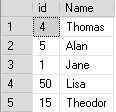
table T SQL   How to select multiple rows into a single row

What I wanted was to select all as one row as a set of items separated with a comma, where an item was ‘id: name’. The items had to be sorted by the id. So the result was supposed to look as below:
result T SQL   How to select multiple rows into a single row

Continue reading ‘T-SQL – How to select multiple rows into a single row’

Summary of Communities to Communities (C2C) 2009 Conference

C2C is a history now. I attended .NET stream and one session on SQL. The conference as a whole was very interesting, well organised, and basically developing. It was a Polish conference so most sessions were conducted in Polish but there were a couple of speakers from abroad too, and they spoke in English.

Basically I’m happy I had a chance to attend the conference. Below are my notes and comments. Please note they are my comments; should I write something which is not true or accurate, please let me know, sometimes pace was fast so I might have skipped something icon smile Summary of Communities to Communities (C2C) 2009 Conference
Continue reading ‘Summary of Communities to Communities (C2C) 2009 Conference’

How to dynamically add new columns to report created with Reporting Services?

Imagine you have a report that displays some data and the number of columns cannot be defined at the design stage, i.e. the number of columns depends on user input. That seems to cause some problems when you want to render this report with Reporting Services…

Solution:

Note: The described solution applies to the case when RDLC files are used by ReportViewer control in local mode. However, it can be simply tweaked so it works in general.

Because the number of columns that should be displayed on the report can be named only at runtime it seems reasonable to update the RDLC file and only then deliver the report. RDLC is an XML file that contains the definition of the report – styling and all fields displayed. So all you need to do is to read the RLDC file into XmlDocument, get some nodes and update them.
Continue reading ‘How to dynamically add new columns to report created with Reporting Services?’

Brief Introduction to SQL Server Reporting Services (SSRS)


If there’s no presentation embeded, you can
view it on slideshare

Exception – ORA-00604: error occurred at recursive SQL level 1 ORA-01003: no statement parsed

In my application data were collected from database (Oracle) using web services that called stored procedures. One of the stored procedure had SELECT defined similar to the one below:

WITH sth1 as
(
	SELECT ...
),
sth2 as
(
	SELECT ...
)
SELECT ...

This construction was the reason why in my application I was getting the following exception while invoking that web service:

Exception – ORA-00604: error occurred at recursive SQL level 1 ORA-01003: no statement parsed

Solution

The simplest solution for that is to create tables representing sth1 and sth2 created with WITH clause. Then instead of using WITH truncate those tables and fill with data. Finally query against them in the main SELECT.

Updated, 2008-10-22
It turns out if you use a regular table, you may have some problems with multiple calls to the stored procedure – the second call could overwrite the first call’s data with a second call to truncate.
Therefore use either:

 Exception   ORA 00604: error occurred at recursive SQL level 1 ORA 01003: no statement parsed

Security in accessing reports on Report Server

Once you deploy reports on to Report Server they can be accessed from any Web application with an established URL. However, I see a scenario when one wants to prevent some users from accessing reports (e.g. a user should be able to view reports presenting only their personal information).

The way around this is to view reports on an aspx page by employing ReportViewer control, which makes it possible to view reports hosted locally or deployed on (in particular remote) ReportServer. I’ve chosen the former approach.

In order to use ReportViewer with reports hosted locally, you need to:

  • change the extension of the report files from RDL to RDLC
  • configure ReportViewer control so it is associated with an appropriate RDLC file and DataSource (you will need to configure it by providing the connection details, specifying the SQL query or stored procedure that will retrieve the data)
  • in code behind for that aspx page (in Page_Load method) you can add some logics that checks if the currently logged user can access the report; if not, you can just throw an Exception
  • if you want to pass parameters to the ReportViewer, you will have to add a few lines to the above mentioned method:
    ReportParameter p = new ReportParameter(PARAM_NAME, PARAM_VALUE);
    reportViewer.LocalReport.SetParameters(new ReportParameter[] { p });
 Security in accessing reports on Report Server

Reporting Services – deploying RDL files

In this post I’ll describe how to deploy RDL files using Report Manager (more often http://localhost/Reports or http://localhost/Reports$SQLExpress).
Note: This description applies to the situation where Microsoft SQL Server is used.

  1. Go to Report Manager
  2. Too keep all clean, you can create a folder in which you will keep all your reports
  3. Create the data source, if not yet existing, by selecting the New Data Source link.
    • Specify Microsoft SQL Server as the Connection Type.
    • Specify the database Connection String as follows:
      data source=[Name of database server SQL Instance];initial catalog=[Name of database]
    • Connect Using the Credentials stored securely in the report server and specify the user name and password used to connect to SQL Server instance installed in the database server.
      ssrs config3 350x303 Reporting Services   deploying RDL files

      Datasource configuration

  4. Upload the report by selecting the Upload File link and navigate to the RDL file stored in the system.
  5. Using Show Details view, edit the uploaded reports by selecting the Edit link.
  6. Under the Data source link, assign the previously created shared datasource as the source of data for the report.

    Note: The “Apply” button needs to be selected to apply the changes made for the report.

 Reporting Services   deploying RDL files

Reporting Services – problem with passing parameters directly in the URL

In one of the projects I had to create reports (using Reporting Services) that then should be accessible from the application I’ve been developing.

As the first thing I created the reports themselves (RDL files), deployed them using the Report Manager (more often http://localhost/Reports or http://localhost/Reports$SQLExpress), and configured so I could access them. However, each time I accessed a report I had to provide the input parameters which were used by the stored procedure in order to deliver appropriate amount of information. I wanted to avoid that by passing the parameters somwhowin the URL.

Google came with two interesting articles: Using SQL reporting services in an asp.net application with some notes on report parameters, and Passing parameters and other options directly through a URL in Reporting Services. I followed the instructions but failed. In fact I got stuck making minor changes to the URL, checking the configuration, googling further…

It was only my friend who spotted that I tried to pass the parameters to the Report Manager using URL similar to http://localhost/Reports/Pages/Report.aspx?ItemPath=XXX&rs:Command=Render&ParamName=ParamValue. Instead I should use the Report Server, so link looking this way: http://localhost/ReportServer/?XXX&rc:parameters=false&rs:Command=Render&ParamName=ParamValue.

Note: Please remember there are two services: Report Manager and Report Server and understand the difference between them. This way you won’t loose presous time, as I did icon smile Reporting Services   problem with passing parameters directly in the URL

 Reporting Services   problem with passing parameters directly in the URL

Reporting Services – “Your browser does not support scripts or has been configured not to allow scripts.”

When I run a report in the Report Manager using Internet Explorer (I had this issue on IE7) I got the following error:

Your browser does not support scripts or has been configured not to allow scripts.

Solution

Should you get it as well follow the instruction below:

  • go to (from its menu) Tools/Internet Options
  • go to Security tab
  • select Trusted zone from the list of available zones
  • click Sites button
  • in new window provide the URL of the Reports Manager (e.g. http://MACHINE_NAME/*); if you are running Reports Manager not on the default port, provide the port number as well

That helped me.
Should you have any problems with it, let me know.